Revit, SketchUp and Rhino
Plugins for Revit 2024–2027, SketchUp 2023 or newer on Windows, and Rhino 8. Version 1.0.13 downloads from incontext3d.com.
Software · InContext3D
InContext3D places your model on Google's photorealistic 3D tiles of the real site and turns any view into an AI image or video, from the browser or right inside Revit, SketchUp and Rhino.

Free to use. Pay only for what you render.
The launch film
A minute with InContext3D: design, search the address, publish from Revit, SketchUp or Rhino, place the model on the real site and render it.
How it works
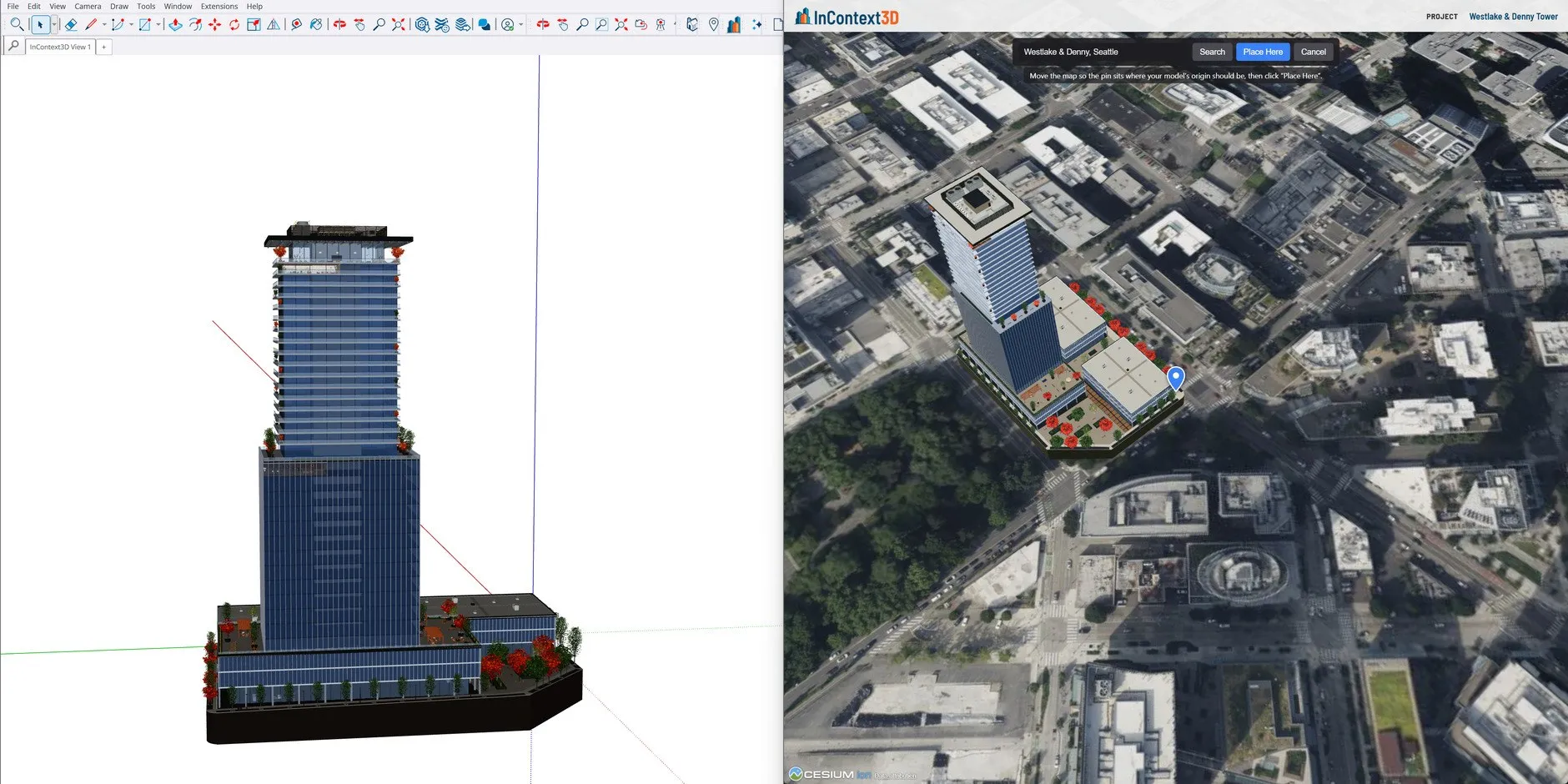
Search any address and drop your model on photorealistic 3D tiles of the real site with a pin, at true scale.
Let the viewer follow your CAD camera with Live Sync, set the time of day and sun, clear the lot with Earth Tile Cut and add markups.
Turn the frame into an AI image or short video in AI Studio. Nano Banana Pro is the default image model.
AI rendering
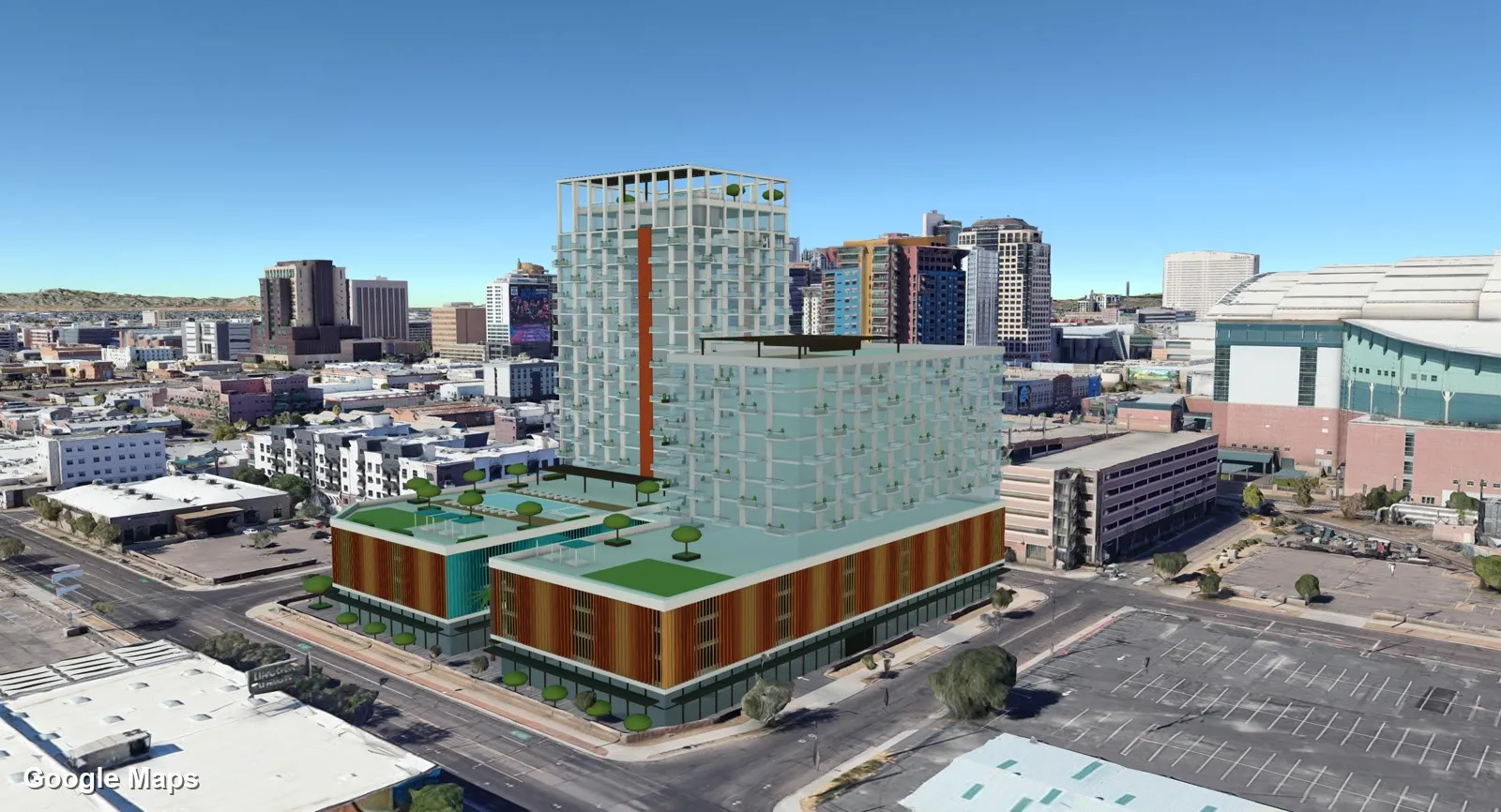
Drag the slider. On the left is the model on the real 3D tiles; on the right is the AI render from the same camera.
 Model in contextAI renderGoogle Maps
Made with InContext3D. Concept designs for illustration, not real proposals.
Features
One account across the browser app and all three plugins.
Plugins for Revit 2024–2027, SketchUp 2023 or newer on Windows, and Rhino 8. Version 1.0.13 downloads from incontext3d.com.
The viewer follows your CAD camera as you orbit. Save views back as Revit views, Rhino named views or SketchUp scenes.
Find the site, place the model with a pin, then use Earth Tile Cut to clear what is on the lot today.
Mark up the model and the site for review, and cut a section to show what is inside.
AI images and video from the view you set up, with references and markups to steer the result.
Send clients a link to the project. They do not need an account to look around.
Inside your CAD app
The plugins publish your model and place it on the site for you. With Live Sync, the viewer follows your CAD camera as you work, and any view you like can be saved straight back into your model.
Download the plugins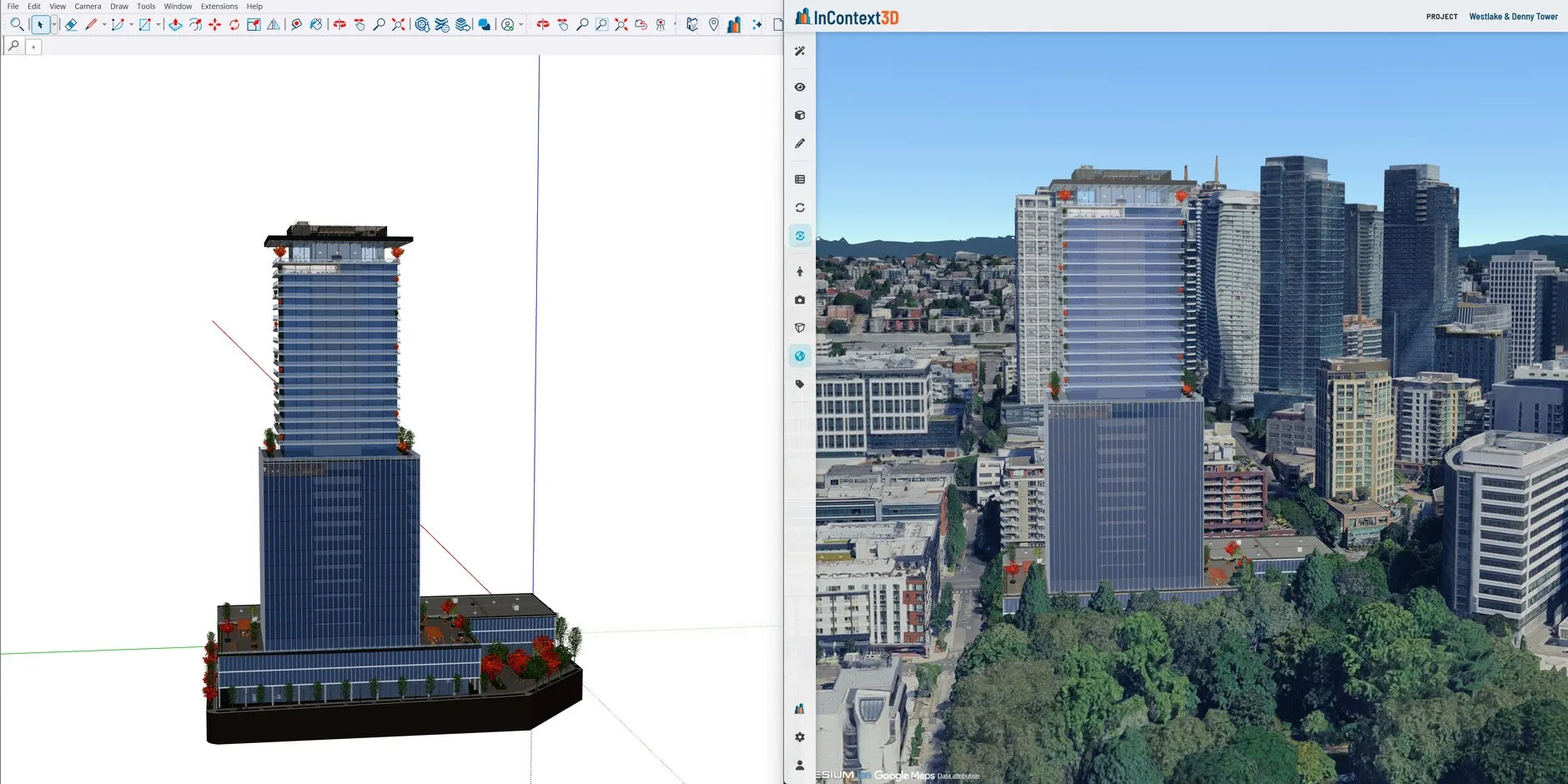
Review and refine
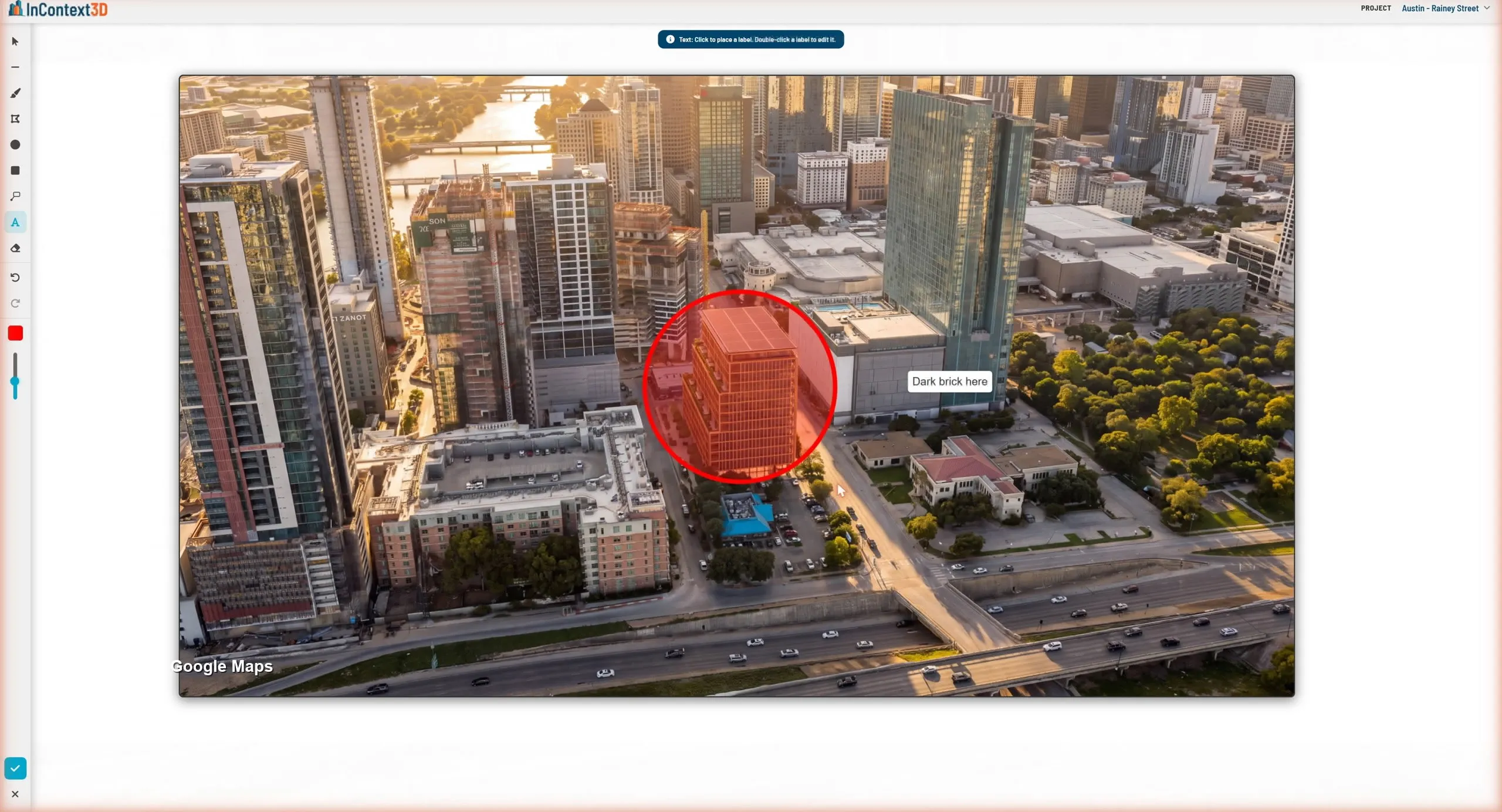
Circle a building on a render, label what should change, such as "Dark brick here", and run it again. Markups on the 3D site work for design review too.
Gallery
Every image here is an AI render from InContext3D on Google's 3D tiles of the real city.
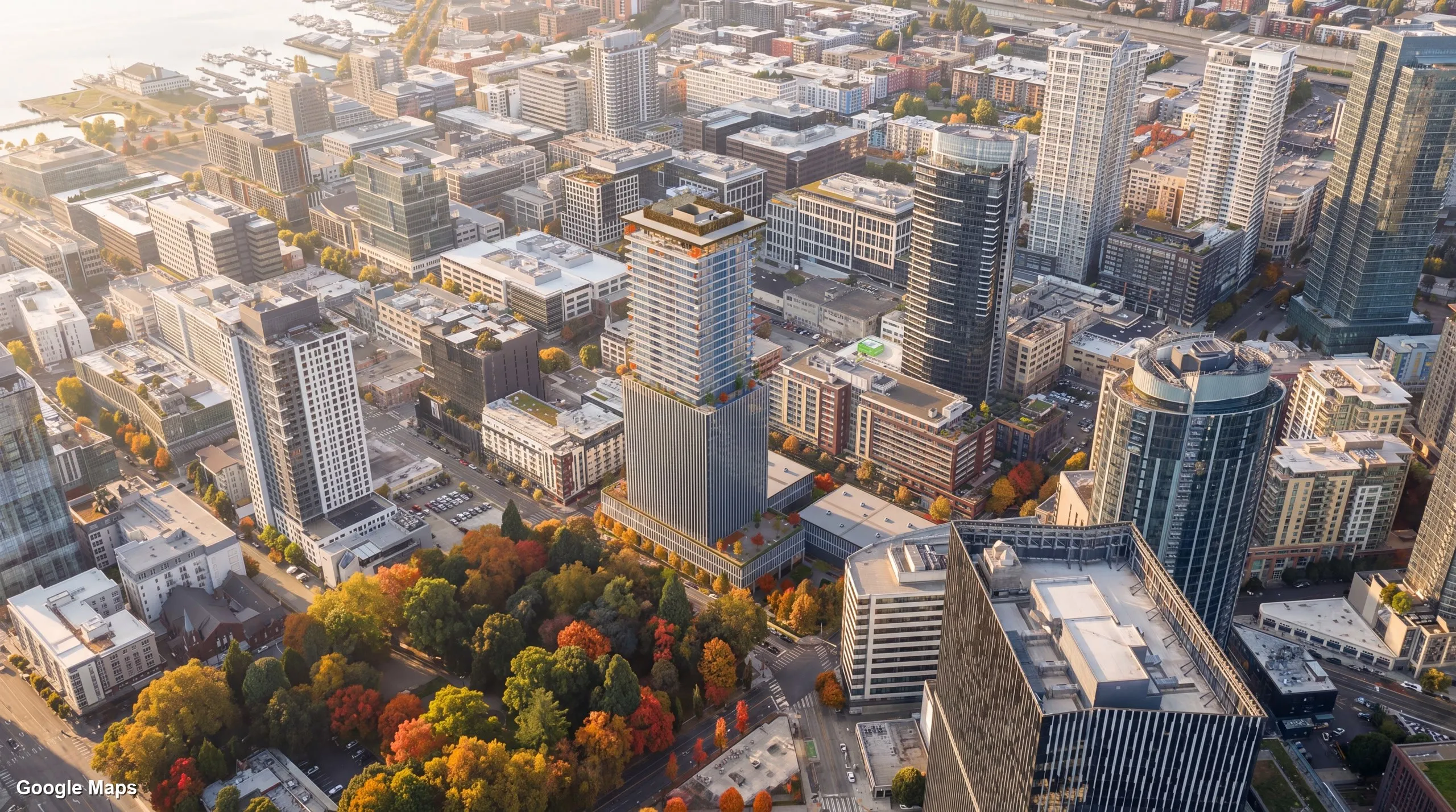





Made with InContext3D. Concept designs for illustration, not real proposals.
Pricing
The browser app, the plugins, markups, saved views and sharing come with every account. You pay only for the AI images and videos you choose to render.
See pricing on incontext3d.comBuilt for
Free to use. Pay only for what you render. InContext3D is built and supported by MOUSE CLICK STUDIOS.